Claude Code
Select Claude Code and click Save project connection…. In Claude, open the Code tab, select the same folder, and approve the OpenTalon connection when prompted.
Connect Gemini, Codex, or Claude, send your first task, or get your workspace back in sync.
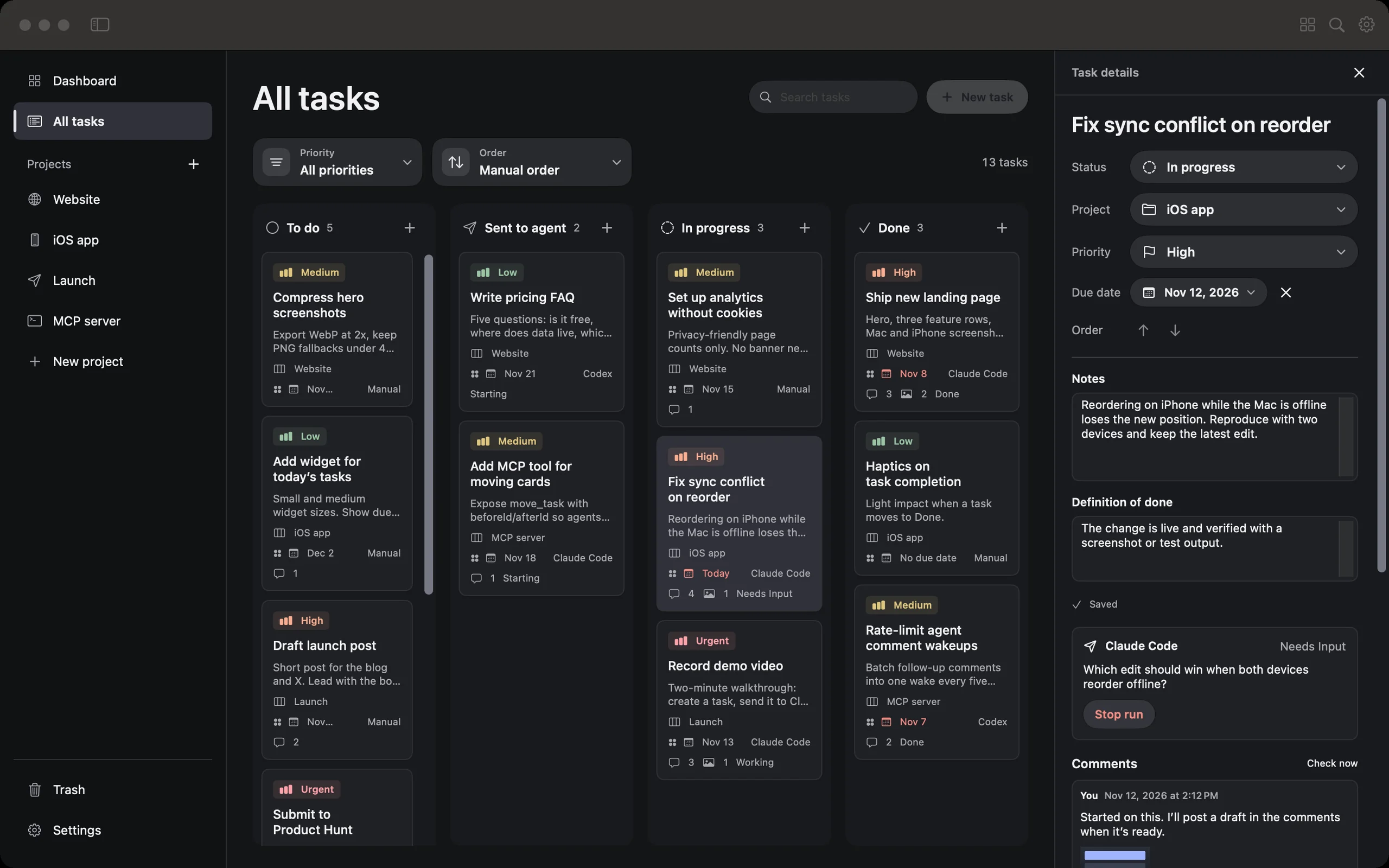
OpenTalon runs agents on your Mac using your existing sign-in. To send tasks from OpenTalon to Google, follow the Antigravity setup instructions. To let an external client work with your OpenTalon boards, use the MCP connection below.
Select Claude Code and click Save project connection…. In Claude, open the Code tab, select the same folder, and approve the OpenTalon connection when prompted.
In Codex, open Settings → MCP servers and add a server. Choose STDIO, copy the fields from OpenTalon’s Codex setup, then save and reload the connection.
To check the setup from your agent’s chat, ask “List my OpenTalon projects.”
Install Google’s Gemini CLI. In OpenTalon, open Settings → Agent connection guide → Set up connection. Enable the connector, select Gemini CLI, and click Copy setup command.
Open the intended project in Gemini CLI and confirm you trust that folder. Return to Terminal in the same folder and run the copied command. It registers OpenTalon in that project’s .gemini/settings.json. Run gemini mcp list from the same trusted folder, then open Gemini and ask “List my OpenTalon projects.” Gemini CLI MCP guide
Sign in once on the Mac that runs your tasks. Your iPhone and iPad can send tasks to that Mac through iCloud.
~/.local/bin/agy --version. If you see a version number, continue to step 2. If the file is missing, follow Google’s Antigravity CLI installation guide for macOS.~/.local/bin/agy, complete the first-launch prompts, and sign in with your Google account in the browser. Return to Terminal to finish.~/.local/bin/agy models. The list shows which models your account can use. If it asks you to sign in, finish the browser flow from step 2.To make Gemini your usual choice, open Settings → Agents on the Mac and set Default agent to Gemini. Leave OpenTalon running on the Mac when sending tasks from another device.
Open a task and tap Send to agent. Choose the agent and model, add an optional comment, and confirm. Your Mac starts the work after the request syncs. Check Queue for progress.
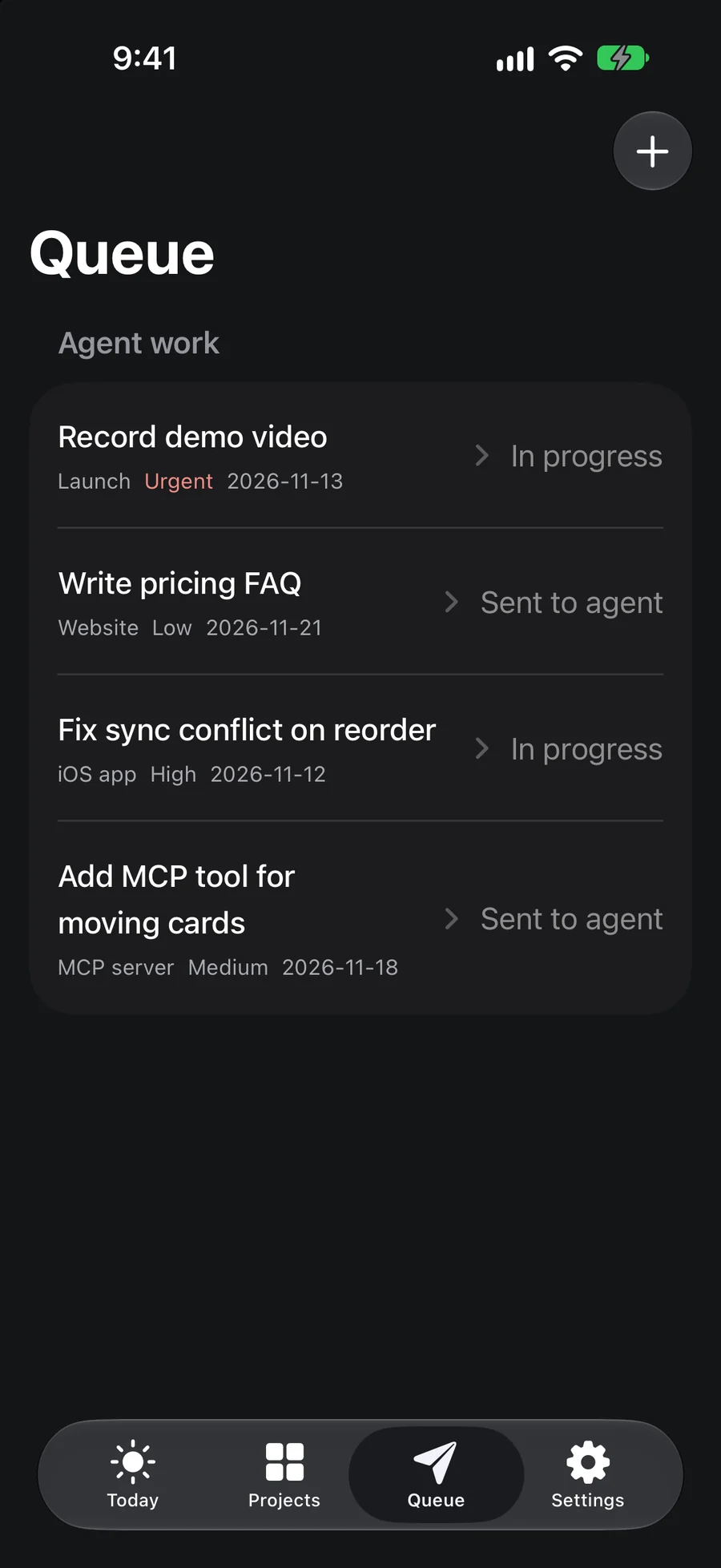
OpenTalon is a free native Mac app: a personal Kanban board for one person and the AI agents they work with. It is made by Protomota. Agents connect through its built-in MCP connector to read, add, and move tasks, and dragging a card to Sent to agent opens the agent picker.
Yes. Every feature is free, with no OpenTalon account and no telemetry. Tips are optional. Your agent provider bills you separately for agent work.
The Mac app needs an Apple silicon Mac running macOS 14 or later. The iPhone and iPad companion is in TestFlight beta and syncs through your private iCloud.
Claude Code, Codex, and Gemini, using the sign-ins you already have on your Mac. OpenTalon has a built-in local MCP connector that other clients can use. It stores no model API key.
In a local database on your Mac, and managing tasks works offline. The mobile app syncs through your own private iCloud database. There is no OpenTalon server. When you send a task, its content goes to the agent you chose and is handled under that provider’s terms.
No. OpenTalon is for one person working with agents. It has no accounts, teams, assignees, estimates, or sprints. Every board has the same four columns: To do, Sent to agent, In progress, and Done.
Open OpenTalon from Applications. Run Test connection in Settings → Agent connection. If the test passes but your agent can’t see OpenTalon, check the approved project connection in Claude Code or reload the STDIO server in Codex. If the agent can see OpenTalon but can’t run a task, check the provider sign-in and the working folder under Task agent.
Quit the other copy of OpenTalon, then click Retry. If it’s running in the background, find the other copy in Activity Monitor and choose Stop → Quit. On version 1.0.2 or earlier, reopen OpenTalon after the other copy quits.
Open the card and check the agent activity. Answer any pending permission request or use the conversation controls to review where the agent left off. Interrupted work waits for your review.
Open OpenTalon on the Mac and mobile device using the same Apple Account. Use Settings → iCloud Sync → Check Now on each device. A large first sync can take a few minutes. You can share sync diagnostics from mobile Settings if the workspace still doesn’t appear.
On Mac, go to Settings → Your data & backups. Use Export Backup… to save a copy, or Import / Restore… to review a backup before restoring it. Daily backups are available in Settings.
Get help setting up OpenTalon or troubleshooting an issue on Mac, iPhone, or iPad. Sign in to create a ticket or reply to an existing conversation.
Go to Protomota SupportTell us what happened, how to reproduce it, and which OpenTalon and macOS versions you’re using. For mobile issues, include your device and iOS or iPadOS version.
Send feedback