Choose the agent
for each task.
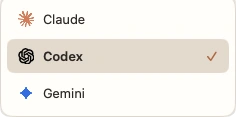
Claude Code, Codex, and Gemini in one workspace.
OpenTalon is a personal Kanban board for Mac. Use your existing agent sign-ins and keep each task’s plan, conversation, and results together.
Free · Apple silicon · macOS 14 or later
- 4
- fixed columns, nothing to configure
- 3
- agents you can choose per task
- 23
- MCP tools for your agent
- $0
- free to use
Reinventing the way work gets done.
For a long time, getting something built took a team: project managers to plan it, specialists to do each part, and meetings to keep everyone in step. An agent operator works alone. One person decides what matters, hands the doing to agents, and checks the result. OpenTalon is built for that person.
Most of the effort goes into coordinating.
- Idea
- Project manager
- Planning meeting
- Ticket
- Designer
- Handoff
- Engineer
- Status update
- QA
- Sign-off
- Shipped
- Work waits in someone else’s queue.
- Context gets lost at every handoff.
- Tools are built for assignees, estimates, and sprints.
One person, working with agents.
- Idea
- You
- Your agents
- Shipped
- You hold the whole picture, so nothing is lost in between.
- Agents do the work. You decide what to build and when it is right.
- One board, four columns, no team features to manage.
What an operator does
- Decide
Choose what is worth doing and write it down as a task, with a definition of done.
- Delegate
Choose Claude Code, Codex, or Gemini for the task. The selected agent does the work on your Mac.
- Review
Read what came back. Request a revision and attach a screenshot if it helps.
- Ship
Accept the result when it meets the definition of done, and move to the next task.
OpenTalon is for solo builders and independent people doing solo work. It is the board between you and your agents.
From a note to done, in four columns.
-
New task Fix the export button To do
Type a title and press Enter.
A task starts as just a title. Add notes, a priority, a due date, or a definition of done when they help. Named boards keep different areas of work apart.
-
To do Sent to agentFix the export button In progress
Choose an agent and send the task.
Open the task and pick an agent next to the message field. OpenTalon saves the conversation with the task and shows its run state on the board.
-
YouThe button is still grey. Screenshot attached. AgentFound it. Fixed and verified. Completion reported
Request a revision, attach a screenshot, close it out.
Feedback you post on an in-progress task goes to the same conversation. A task moves to Done only when the agent reports completion with proof.
Four columns. Nothing to configure.
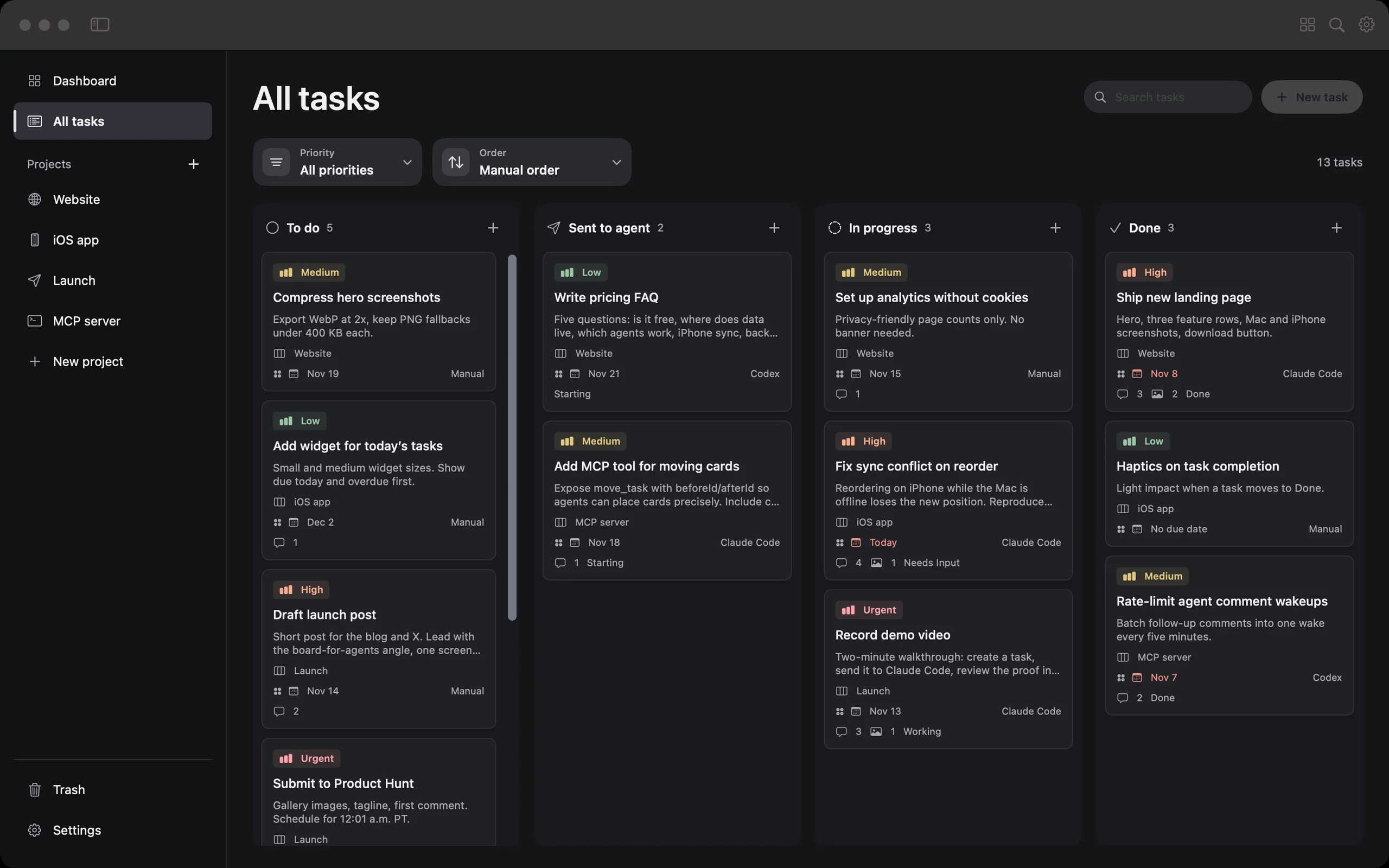
To do, Sent to agent, In progress, Done. Every card shows its priority, project, due date, agent, and run state. These are the real screens of the Mac app.
All tasks: every project's cards on one board, filtered by priority and in the order you set.
Real screens from the Mac app, with sample tasks.
Show it what you mean.
Request a revision on an in-progress task and attach up to three screenshots, or paste one straight from the clipboard. OpenTalon checks every five minutes and delivers pending revision requests to the task’s existing conversation, with the images included.
- Feedback goes to the agent and folder the task was sent with.
- A busy run finishes its turn before it receives the next revision request.
- An uncertain delivery waits for your review and is never silently resent.
Choose an agent when you send a task.
Connect Claude Code, Codex, and Gemini on your Mac. Use a different agent on your next task and keep working from the same board. The built-in local MCP connector also lets compatible clients read and update tasks through their granted tools.
-
01
Local on Mac, private sync on mobile.
Boards, notes, revision requests, and screenshots are saved in a local database the moment you change them. Managing tasks works offline. No OpenTalon account and no telemetry. The mobile app syncs through your own private iCloud database.
-
02
Use your existing agent sign-ins.
OpenTalon uses the accounts already signed in to Claude Code, Codex, and Gemini on your Mac. Each task goes to the agent you choose.
-
03
Careful with your work.
Deleted tasks go to a Trash you can restore from. Permanent deletion and restoring a backup need an approved preview first. Interrupted runs wait for review and are never replayed automatically.
-
04
Small on purpose.
No accounts, teams, assignees, estimates, or sprints. Boards, tasks, priorities, and due dates cover it, for one person.
Your board, wherever you are.
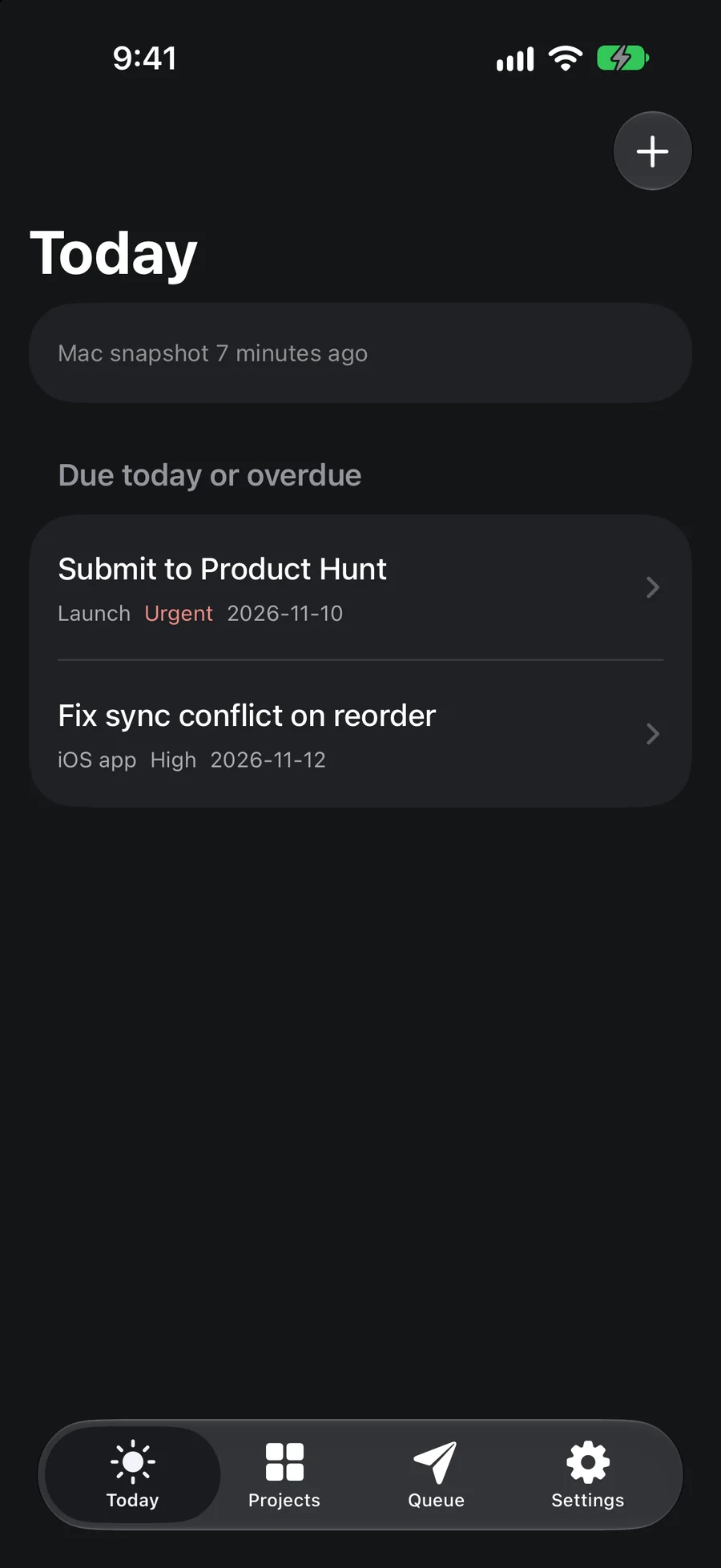
OpenTalon has a native companion app for iPhone and iPad. Check what needs you today, capture a task the moment you think of it, and queue work for the agents on your Mac.
-
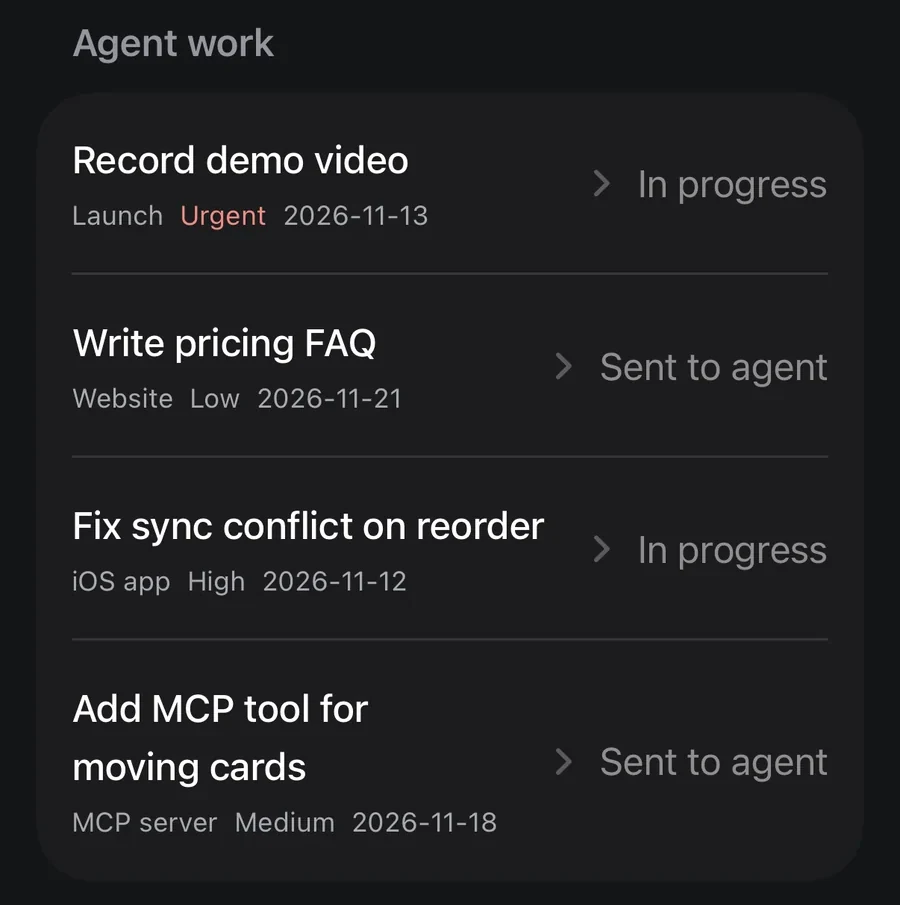
Queue
Hand a task to an agent from your pocket.
Send it from your phone. Your Mac picks it up and starts the work the next time it syncs, and the status follows along.
-
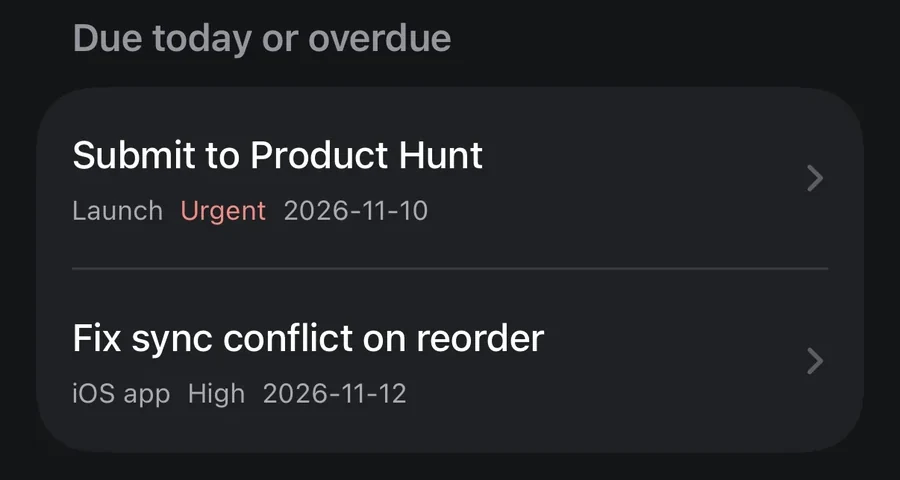
Today
See what needs you.
Due today, overdue, and urgent, in one short list.
-
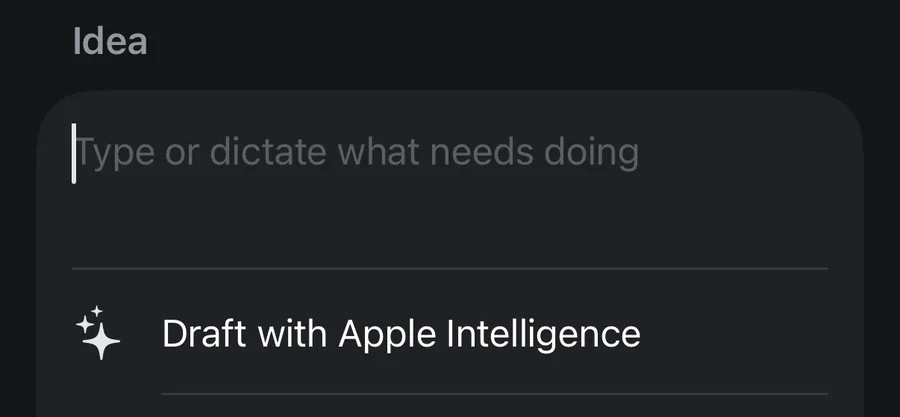
Capture
Say it, and it becomes a task.
Type or dictate an idea. Draft with Apple Intelligence can turn it into a title, steps, and a definition of done.
-
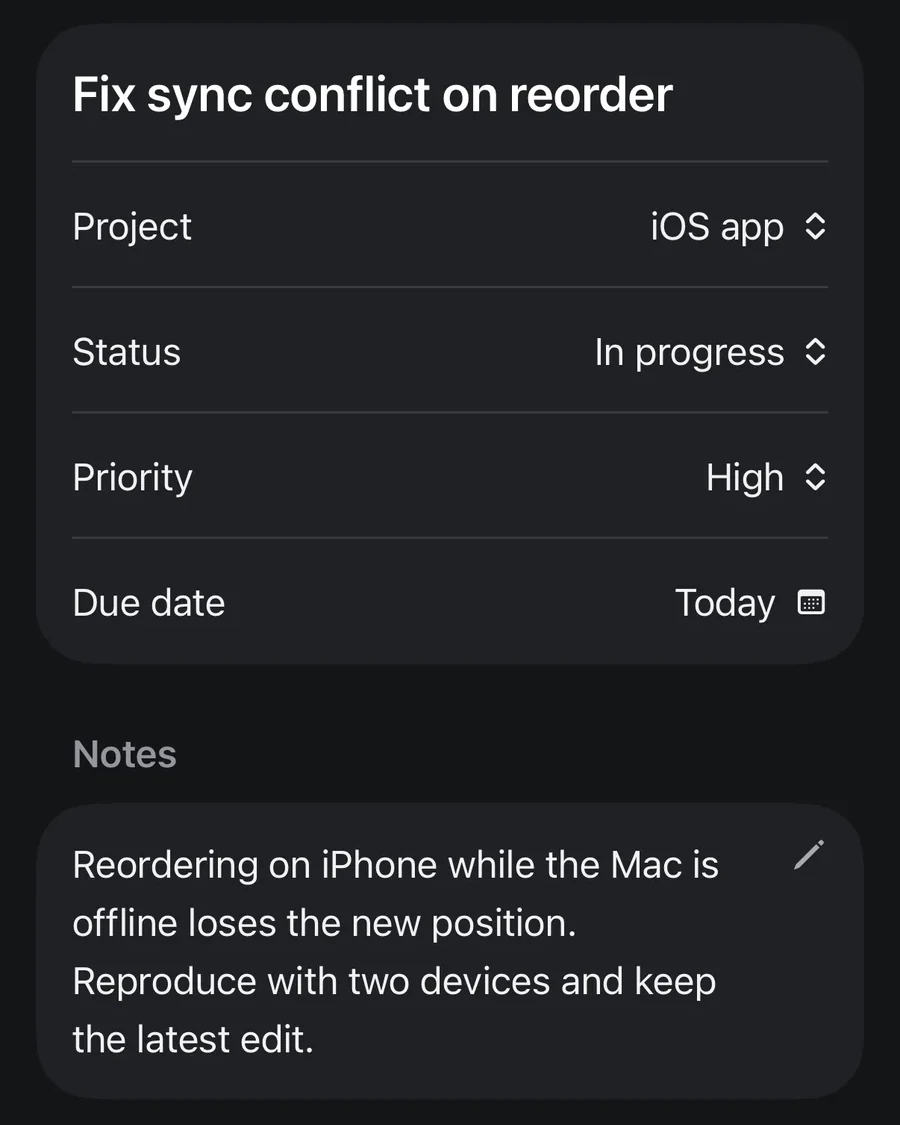
Projects and tasks
Every detail, editable on the go.
Open any project and its tasks. Change status, priority, and due date, edit the notes, request a revision, or mark it done.
Run it all from your iPhone, through your own iCloud.
Ask Claude or Codex from their iPhone app. Your agent works with OpenTalon on your Mac over MCP, and your boards sync back to your iPhone through your private iCloud, on your own Apple Account. We never see your tasks, and OpenTalon needs no account.
- Sync needs
- No account
- No subscription
- No outside API
The AI agent is optional, and so is running it from your phone. If you connect one, MCP runs on your Mac, and the agent and its phone app connect through the AI provider you choose, which may receive what the agent reads.
Private sync, with nothing in between.
Your tasks travel through your own iCloud database. There is no OpenTalon account and no OpenTalon server.
- iPhone and iPadCapture, edit, and queue
- Your private iCloudSame Apple Account on each device
- Your MacHolds the board and the MCP connector
- Your agentsClaude Code, Codex, and Gemini on your Mac
Agents run on your Mac, so requests wait while it is asleep or OpenTalon is quit.
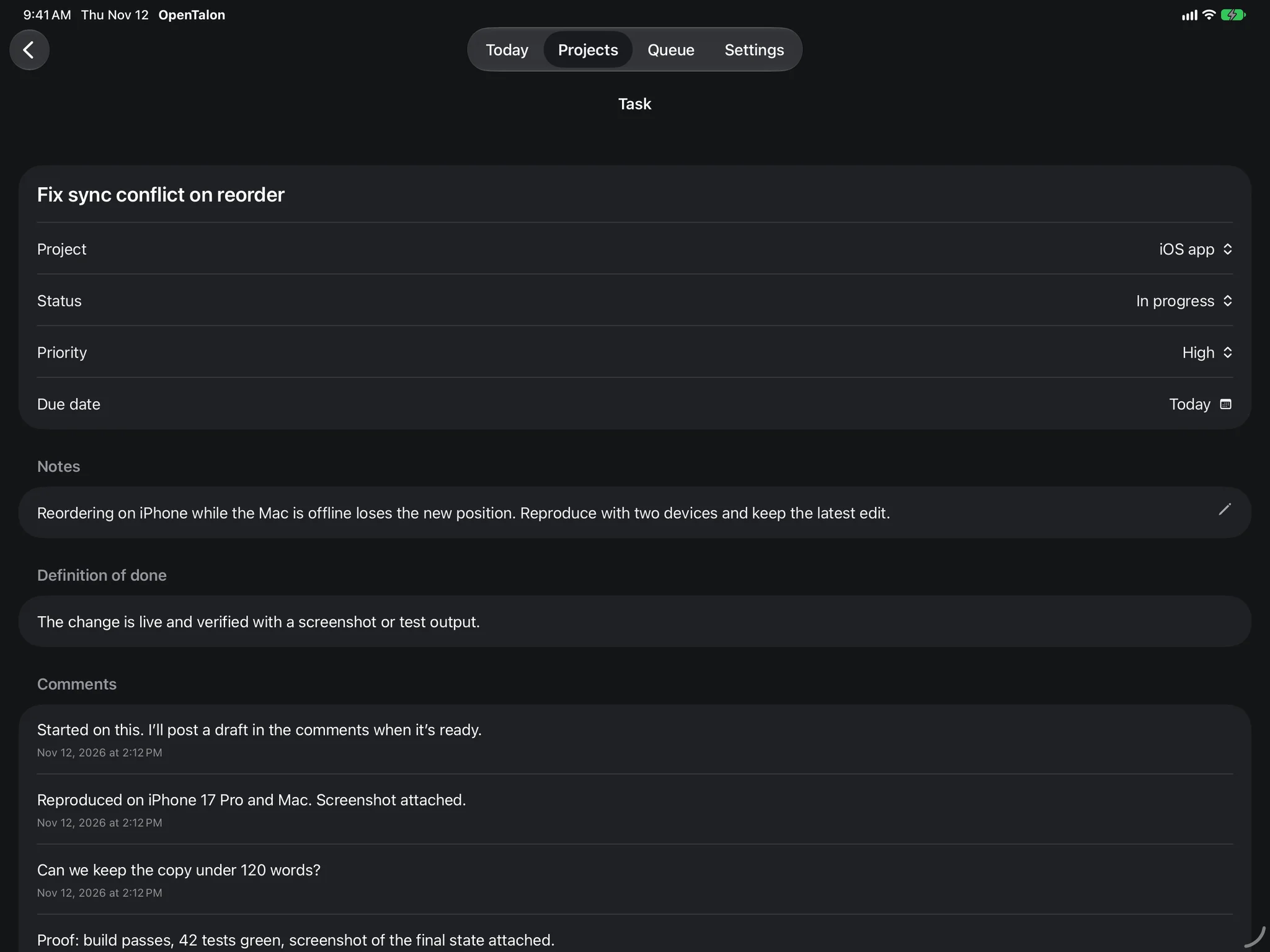
The same app, with room to work.
Everything on iPhone is on iPad too, laid out for the bigger screen.
- Revision requests and agent replies
- Dictate new tasks
- The same themes as the Mac app
The short, complete list.
-
Dashboard
See what is urgent, due today, or overdue across every board, with live counts.
-
Named boards
Separate projects or areas of life by name. Every board has the same four columns.
-
Priorities and due dates
Sort and filter by priority, or drag cards into your own order. Overdue dates stay red.
-
Search and Trash
Find tasks by words in titles and notes. Deleted tasks wait in Trash until you restore them.
-
MCP connector
Built in, with guided setup for Claude Code, Codex, and Gemini. Choose a default agent and a working folder in Settings.
-
Screenshot attachments
Up to three images per revision request. Attach files or paste from the clipboard.
-
Complete backups
Versioned JSON or SQLite backups with comments, screenshots, and settings. Restoring makes a safety backup first.
-
Native on Mac, iPhone, and iPad
Use Mac menus and shortcuts, edit tasks on mobile, and choose Match System, Graphite, Warm Paper, or Native Light.
Download OpenTalon for Mac.
Open the installer and drag OpenTalon to Applications. The Mac app checks for updates automatically.
Sending tasks requires the selected agent to be installed and signed in on your Mac. When you send a task, its content goes to the agent you chose and is handled under that provider’s terms.

Join The Cult of Protomota.
Our Discord community. Ask questions, get OpenTalon support in #opentalon-support, and get updates on new builds straight from the team.
One newsletter.
All of Protomota.
Product updates and notes from the things I’m building. Join only if you want to.
Join the Protomota newsletterOpenTalon is part of Protomota, alongside Jotley, Inkspring, and PulseCanvas Studio.
Explore ProtomotaMade for ideas.
Fueled by coffee.
Enjoying OpenTalon? A coffee is a small way to support the person behind it.
Buy me a coffeeTips are optional. Every feature stays free. Your agent provider bills you separately.
Feedback
Report a bug, suggest a feature, or tell us what’s working.
Send feedbackGet help with OpenTalon
Get help with setup or troubleshoot an issue on Mac, iPhone, or iPad.
Open a support ticketMore from Protomota
Protomota is Brad Dunlap’s independent studio for apps, creative tools, and experiments.
Explore the lab-
 InkspringCraft and schedule social posts on your Mac.
Mac app available · iPhone and iPad companions coming soon
-
 JotleyOn-device voice notes and transcripts.
Available on the App Store
-
 GlimmerA gentle spiritual life coach for minds too busy thinking.
Mac app available · iPhone and iPad companions coming soon
-
 PulseCanvas StudioTurn music into video that moves to the beat.
Available on the App Store
-
 VoxleyPrivate dictation for Mac.
Mac app available
-
 TextleyA native text and code editor for Mac.
Mac app available
-
 AI Resource ProFree tutorials and videos for learning AI.
Website · airesourcepro.com
The export button stays grey after I pick a format. See the capture.
The format picker never cleared its disabled state. Fixed, and the test passes.